EDS 240: Lab 4

Fundamental chart types in review


Week 4 | January 29th, 2026

Choosing the Right Chart for Your Story

Over the past four weeks, we’ve built a toolkit of fundamental chart types—each designed to highlight different patterns, relationships, and insights in your data.

Today’s Goals:

- Select the most effective chart type for your data and message

- Apply design principles to create clear, compelling visualizations

Let’s review the charts in our toolkit and when to use each one!

Distributions

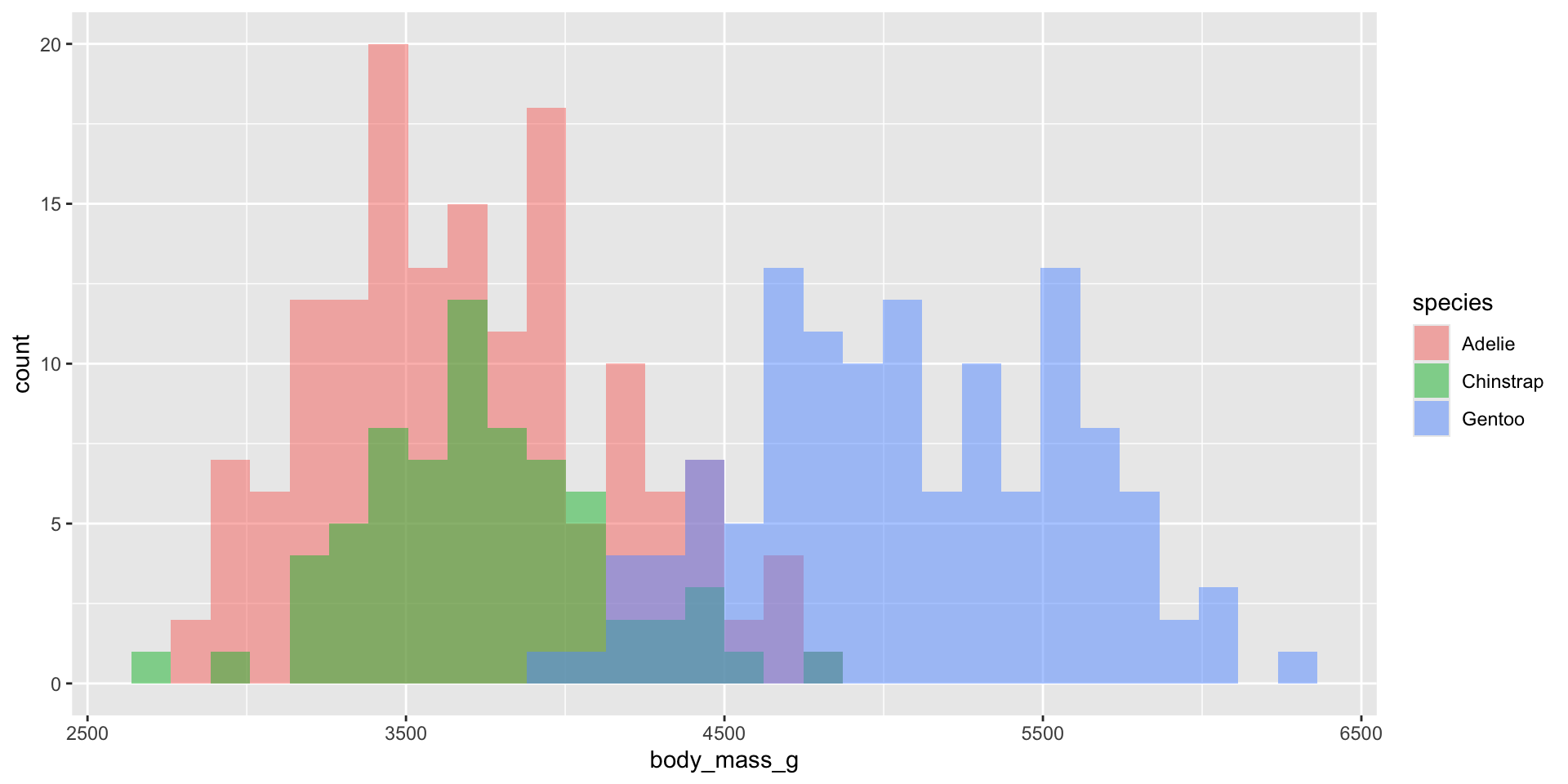
Histograms

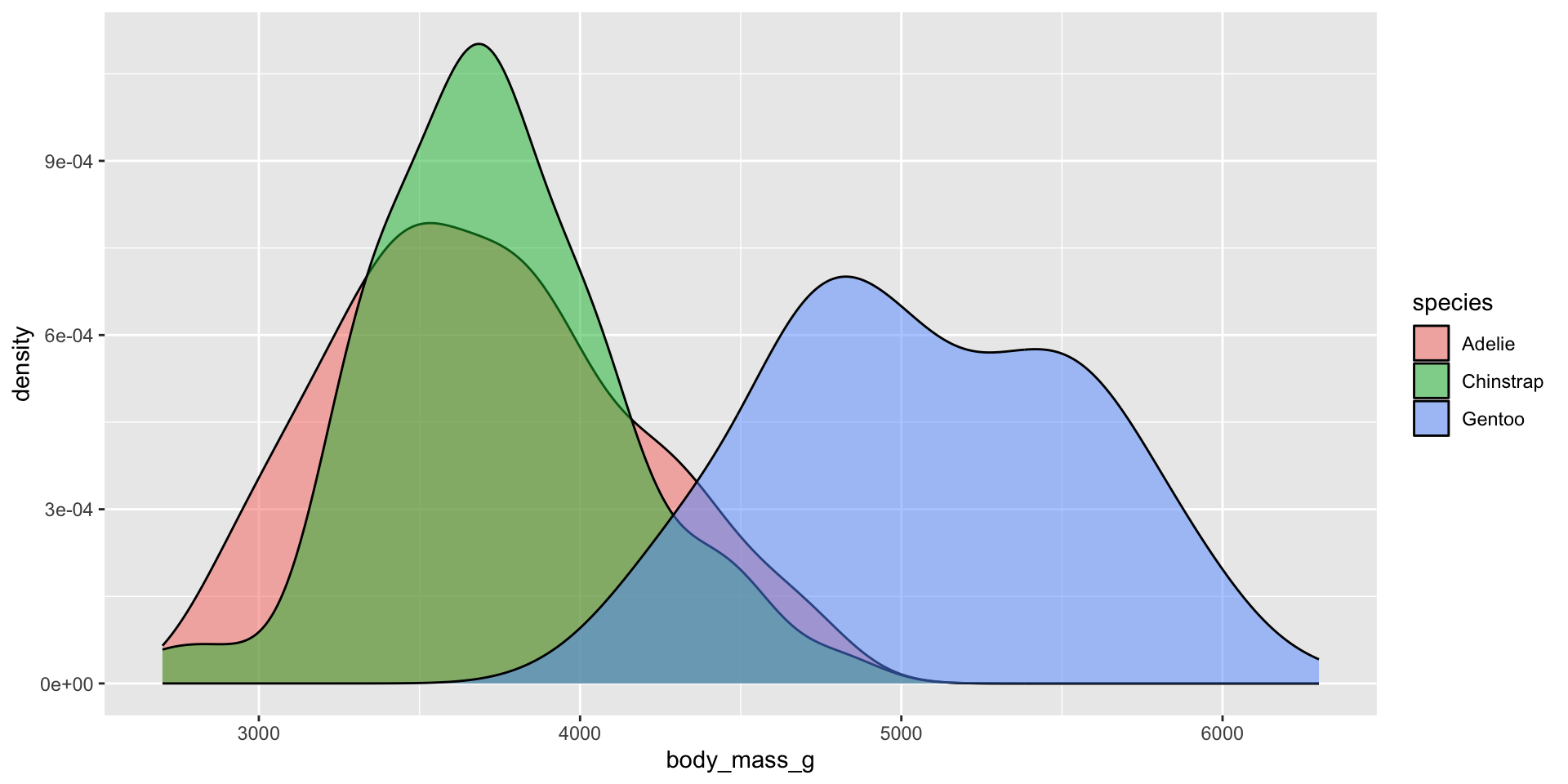
Density plots

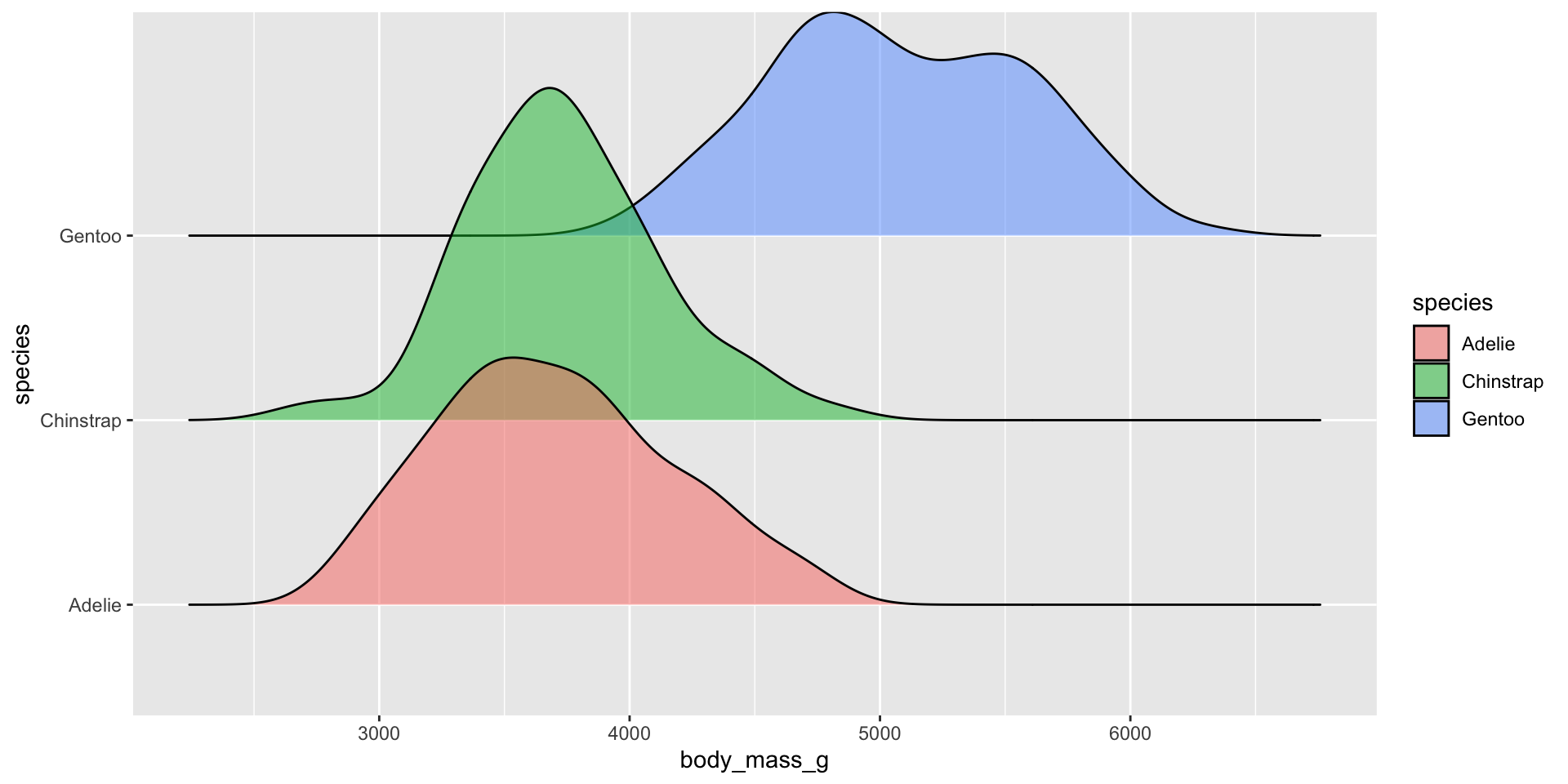
Ridgeline plots

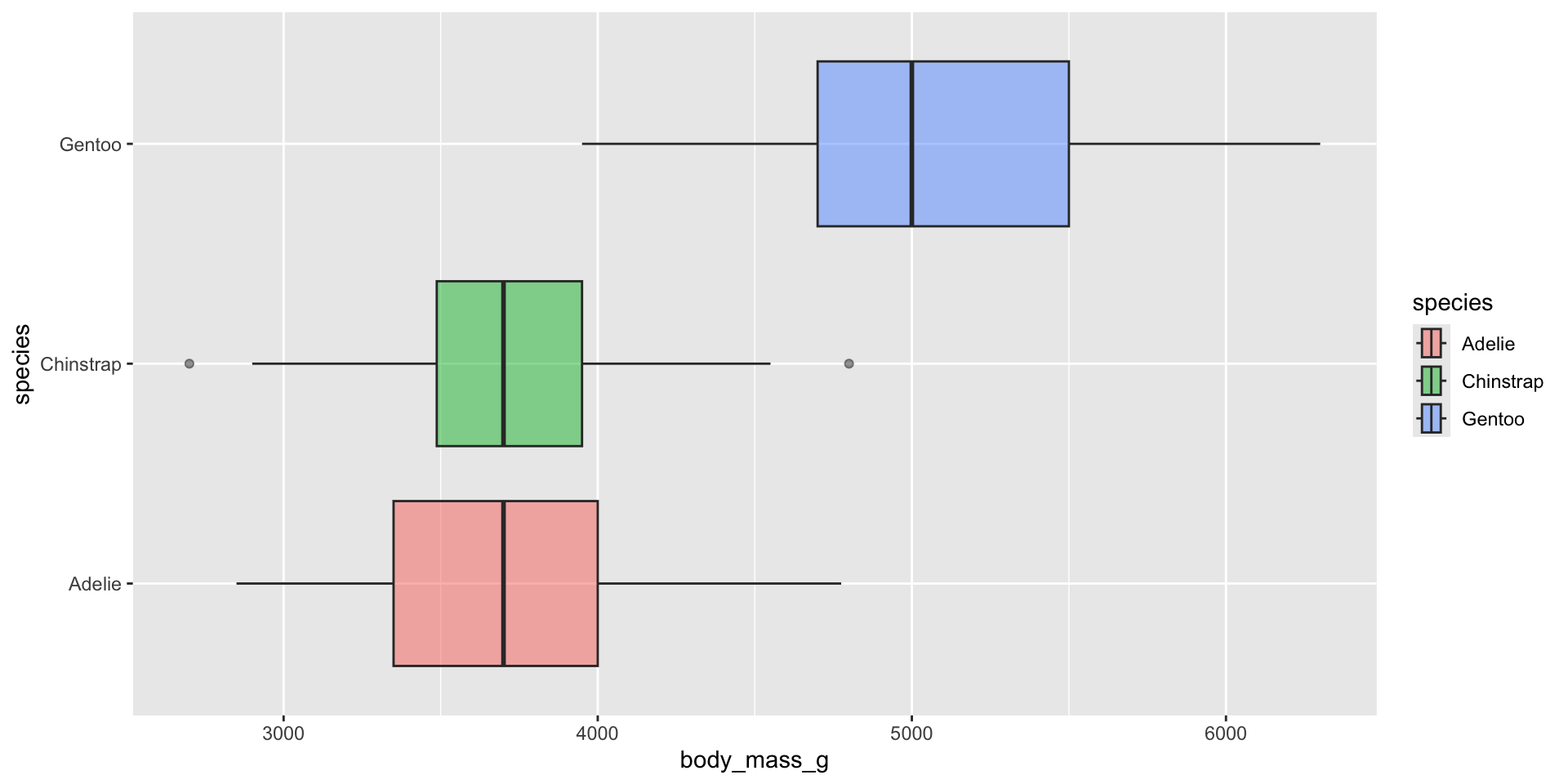
Box plots

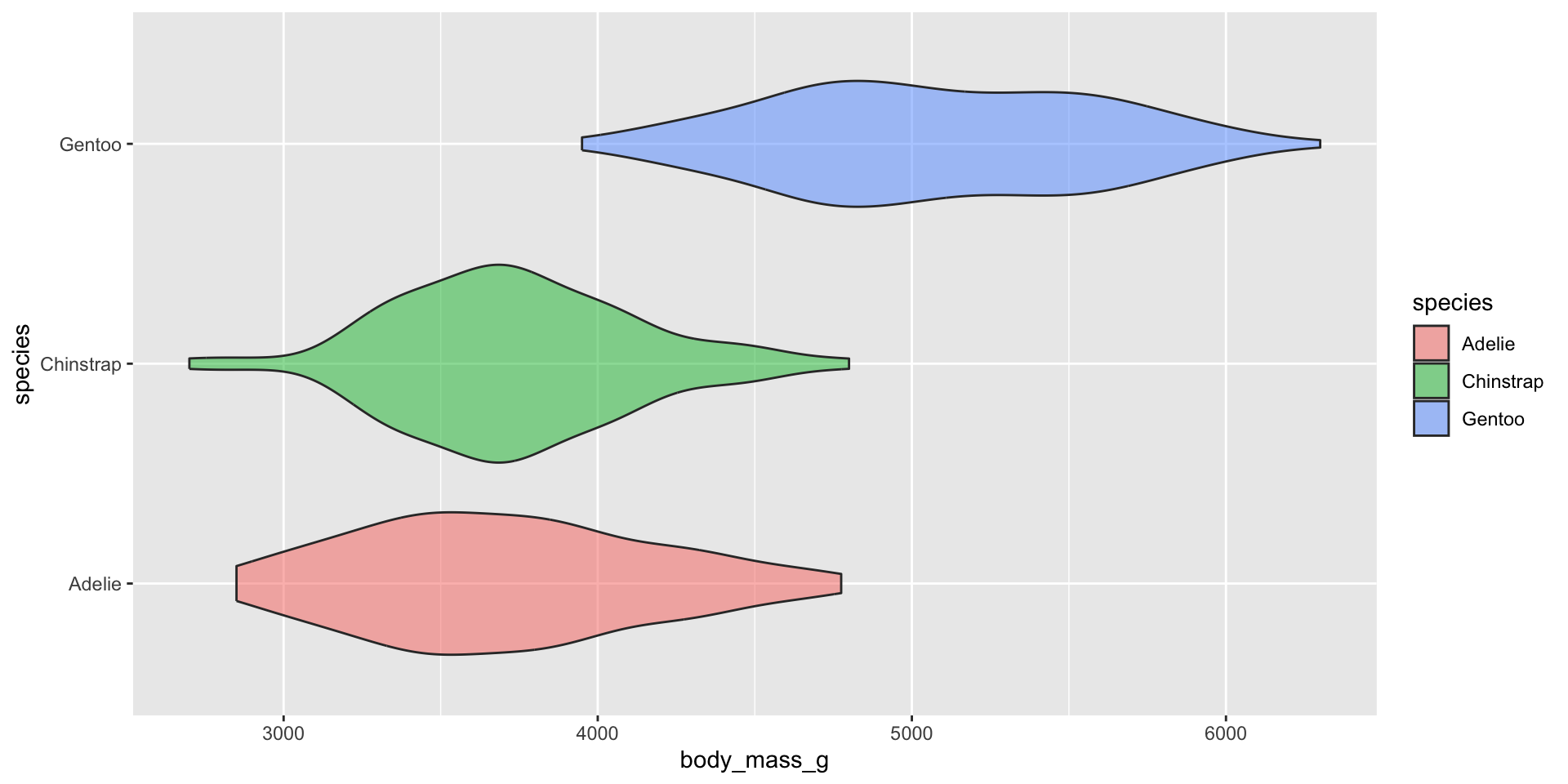
Violin plots

Distribution Considerations

  • Use when you have a lot of values with meaningful differences between those values
  • Avoid plotting too many groups at once
  • Consider faceting
  • Consider plotting fewer groups
  • Modify bin/ bandwidths
  • Overlay histogram & density plots as a sanity check
  • If you have too many groups, consider: a ridgline plot, a box plot, or a violin plot!

Rankings

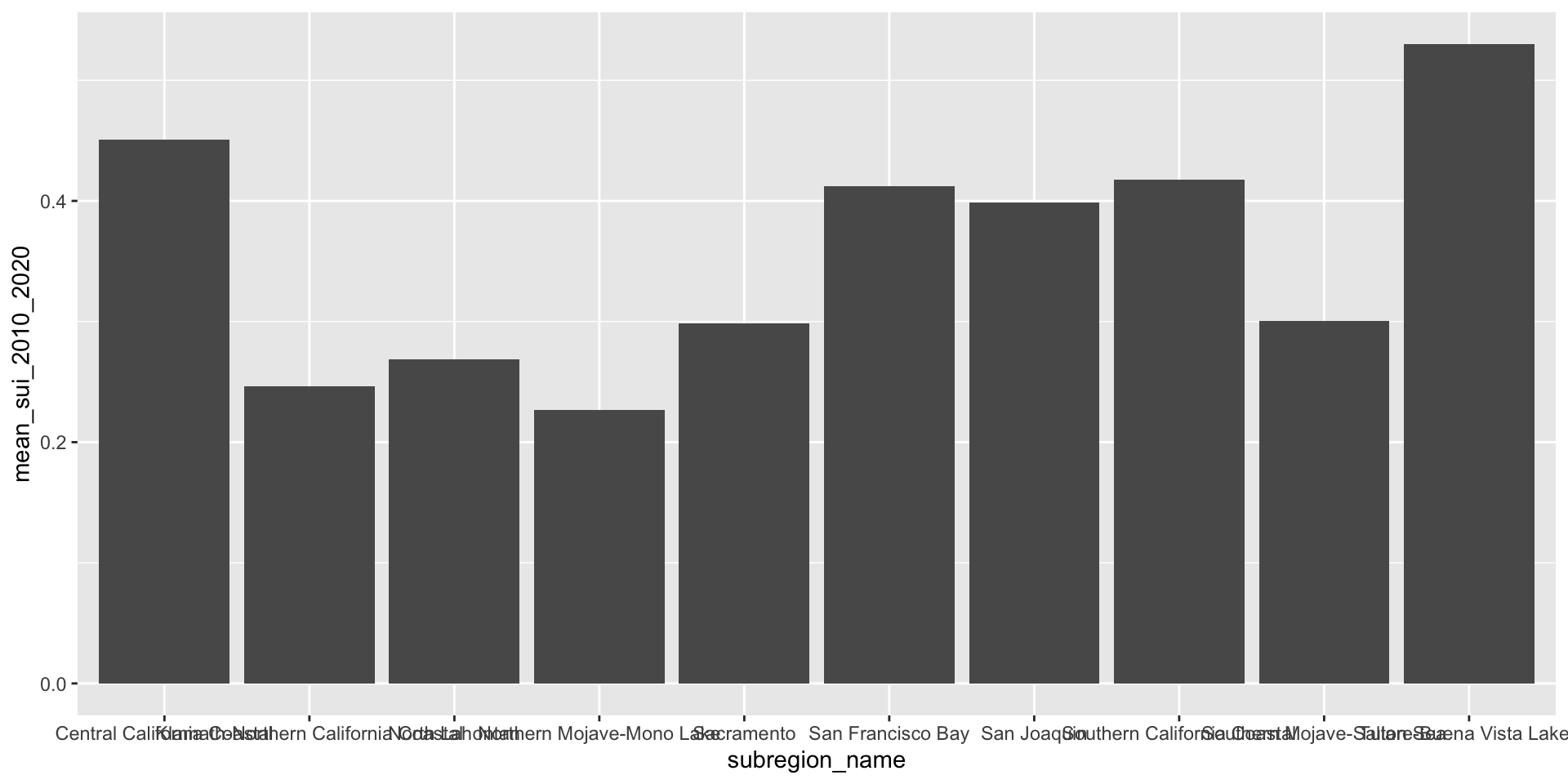
Bar Plots

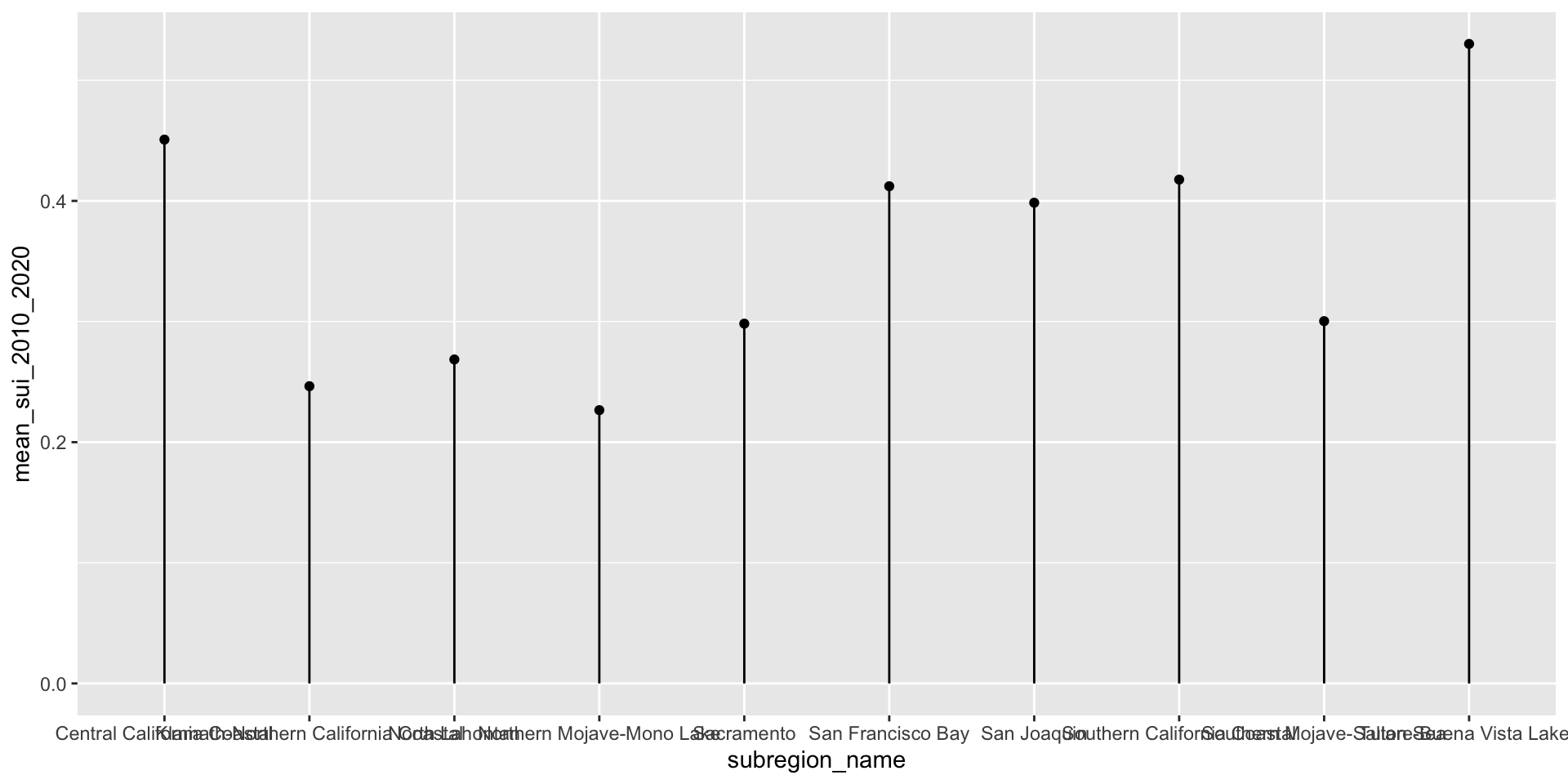
Lollipop Plots

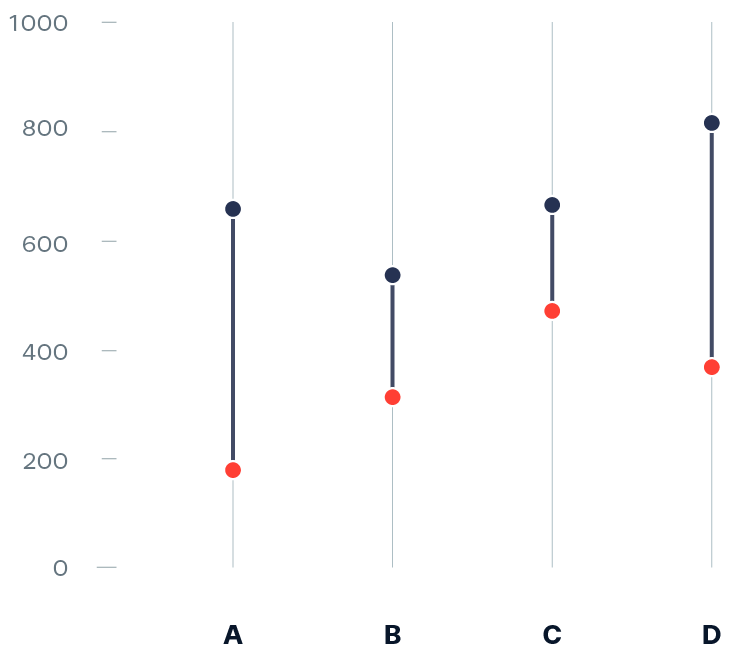
Dumbbell Plots

Considerations:

  • Make space for long x axis labels (coord_flip)
  • Reordering groups helps readers to draw quicker insights
  • Add direct labels if the exact values are important

Evolution

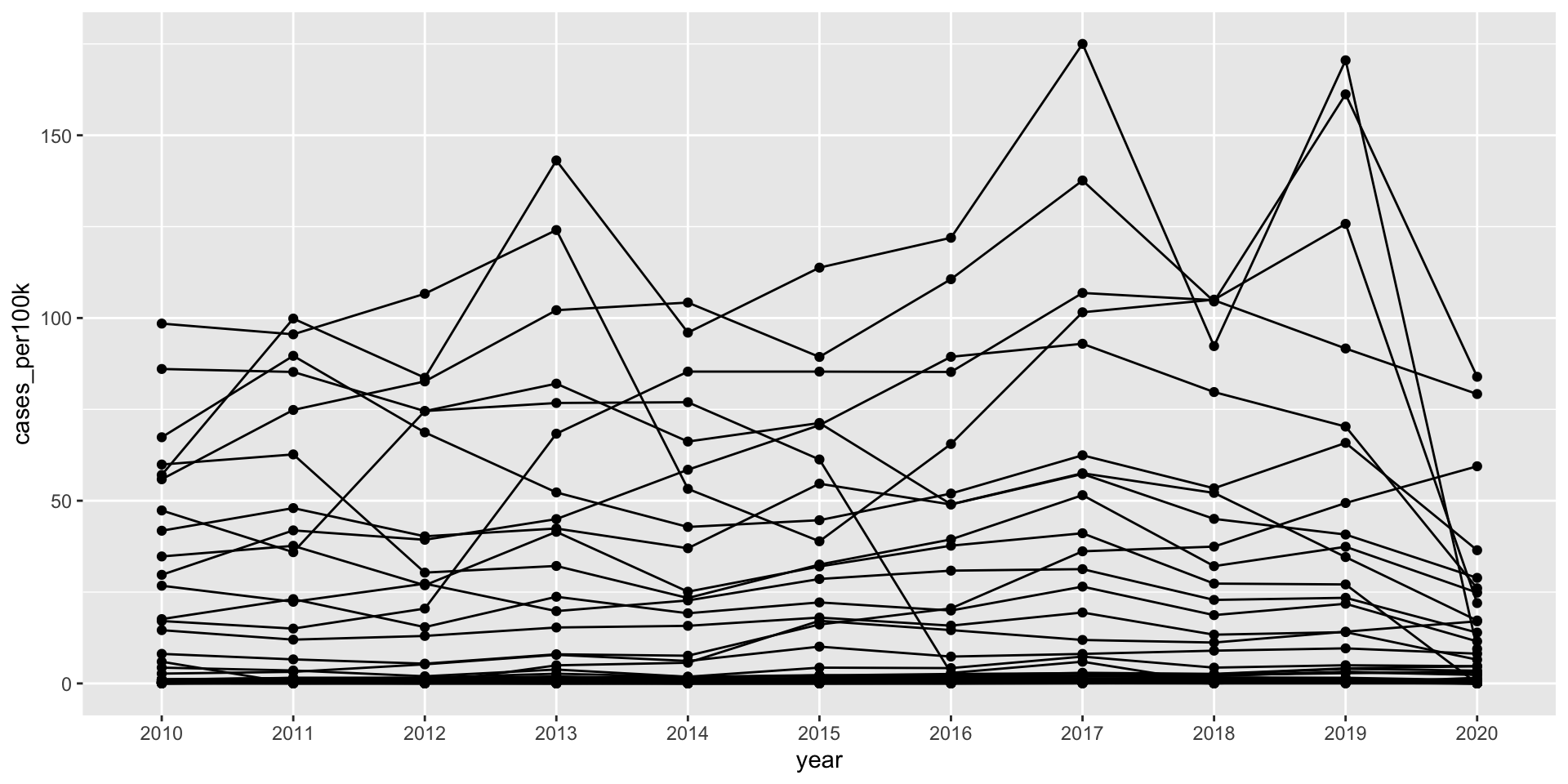
Line Charts

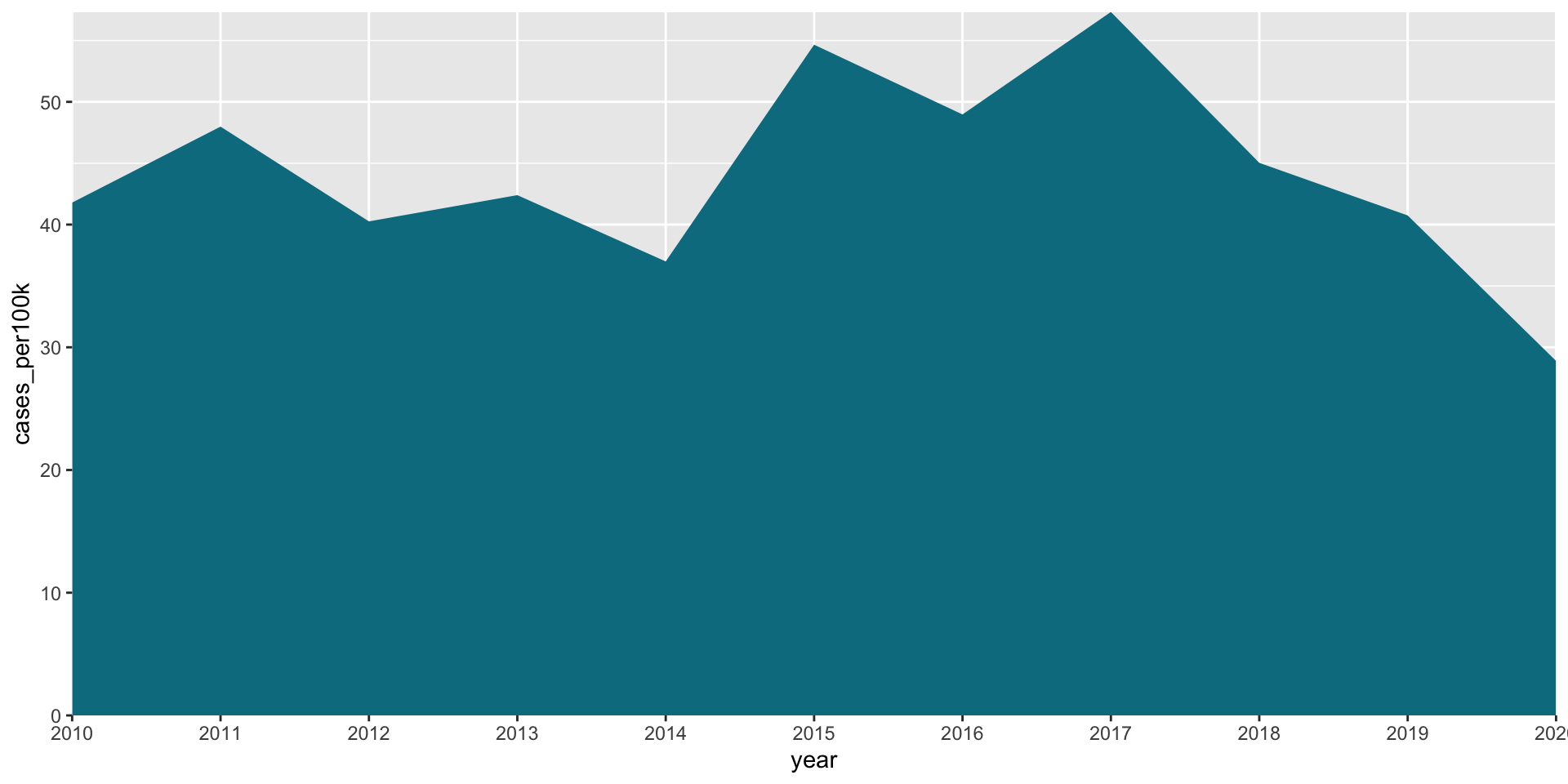
Area plots

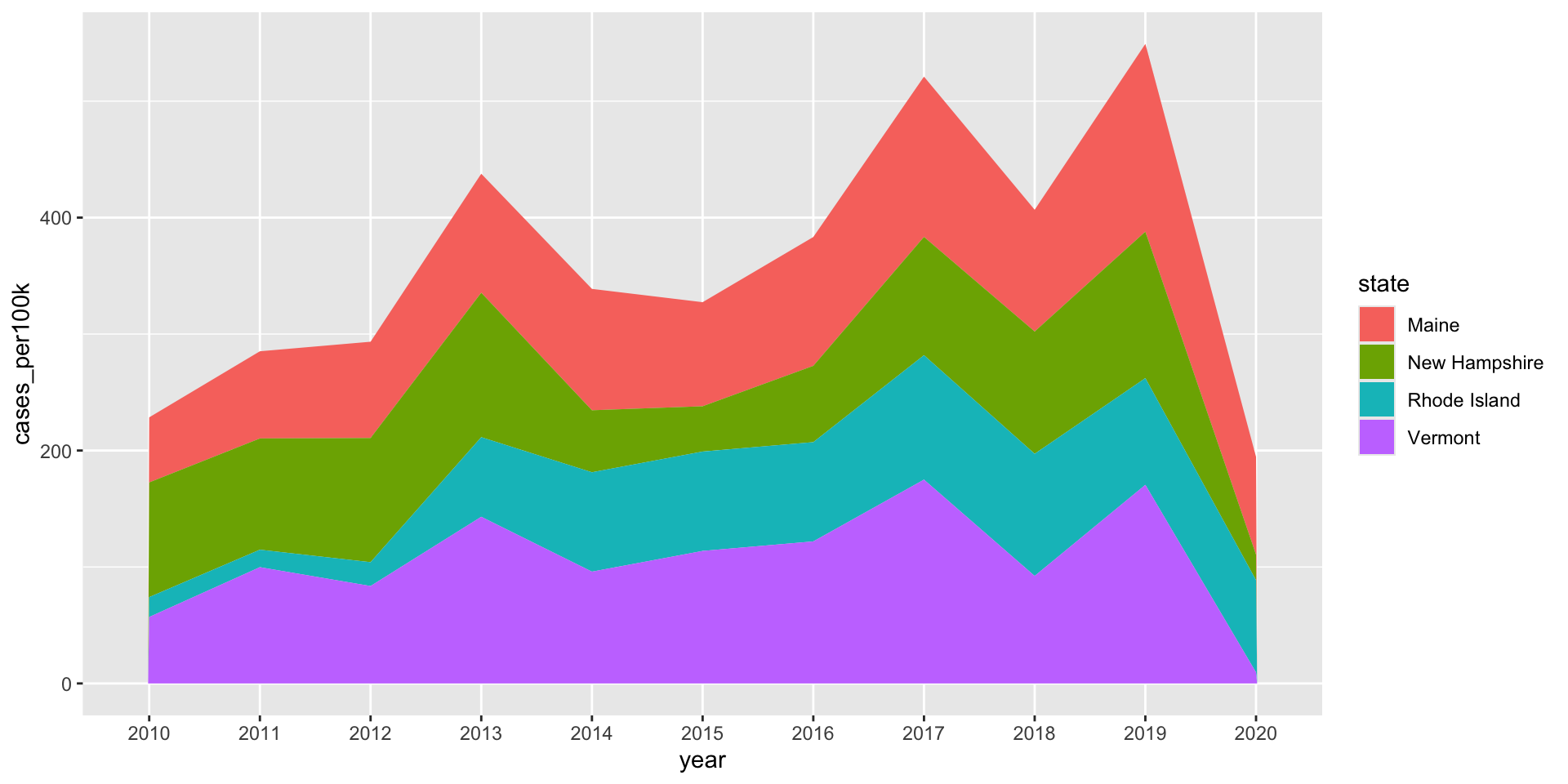
Stacked area plots

  • Too many lines can be hard to read
  • Highlight important trends using gghighlight()
  • Manipulating the aspect ration can be deceptive! Tread carefully!
  • If number of observations is low, a connected scatter plot might be a better fit!
  • Group order matters!
  • Not meant for studying the evolution of individual groups

Numeric Relationships

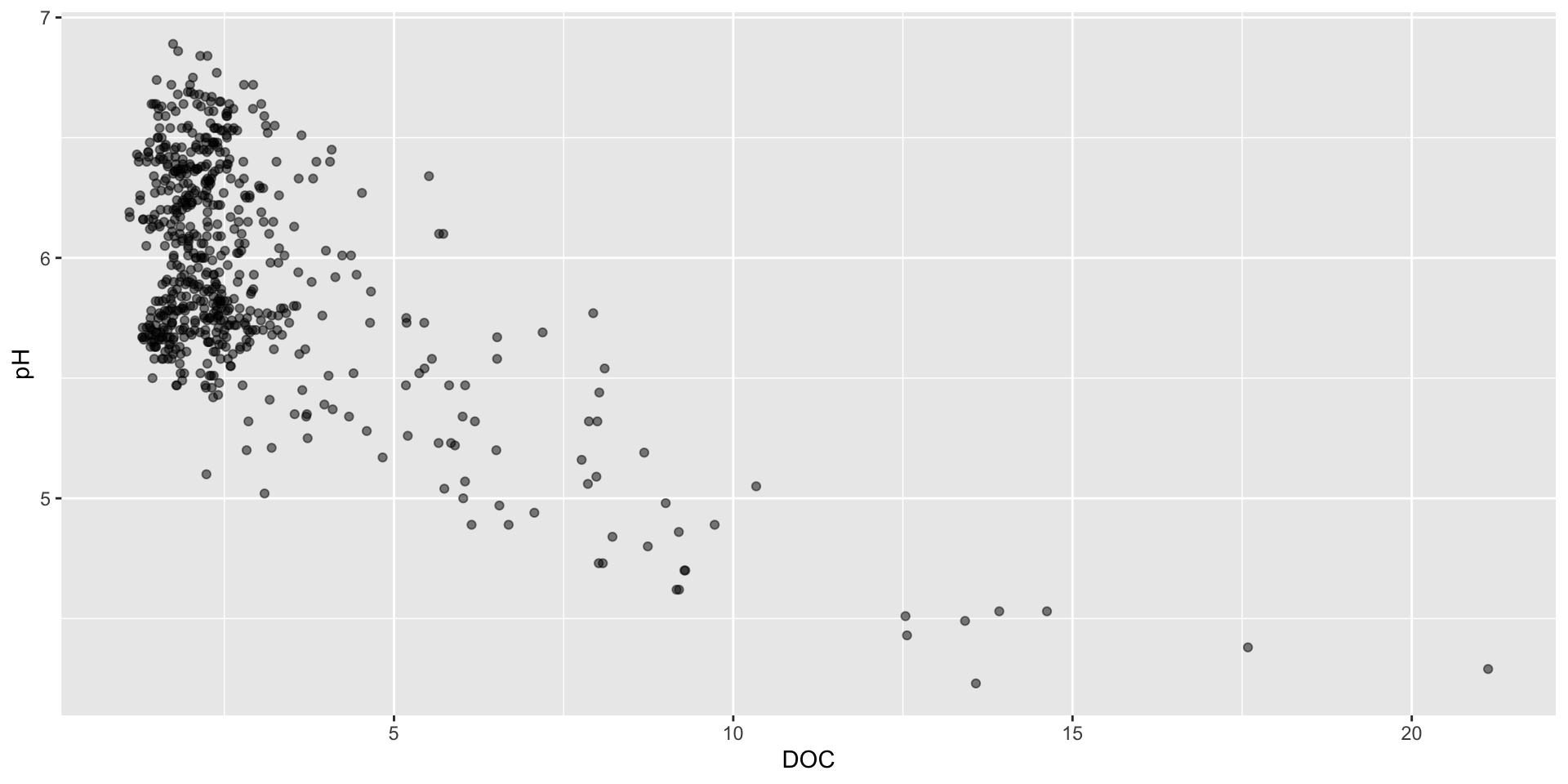
Scatter Plots

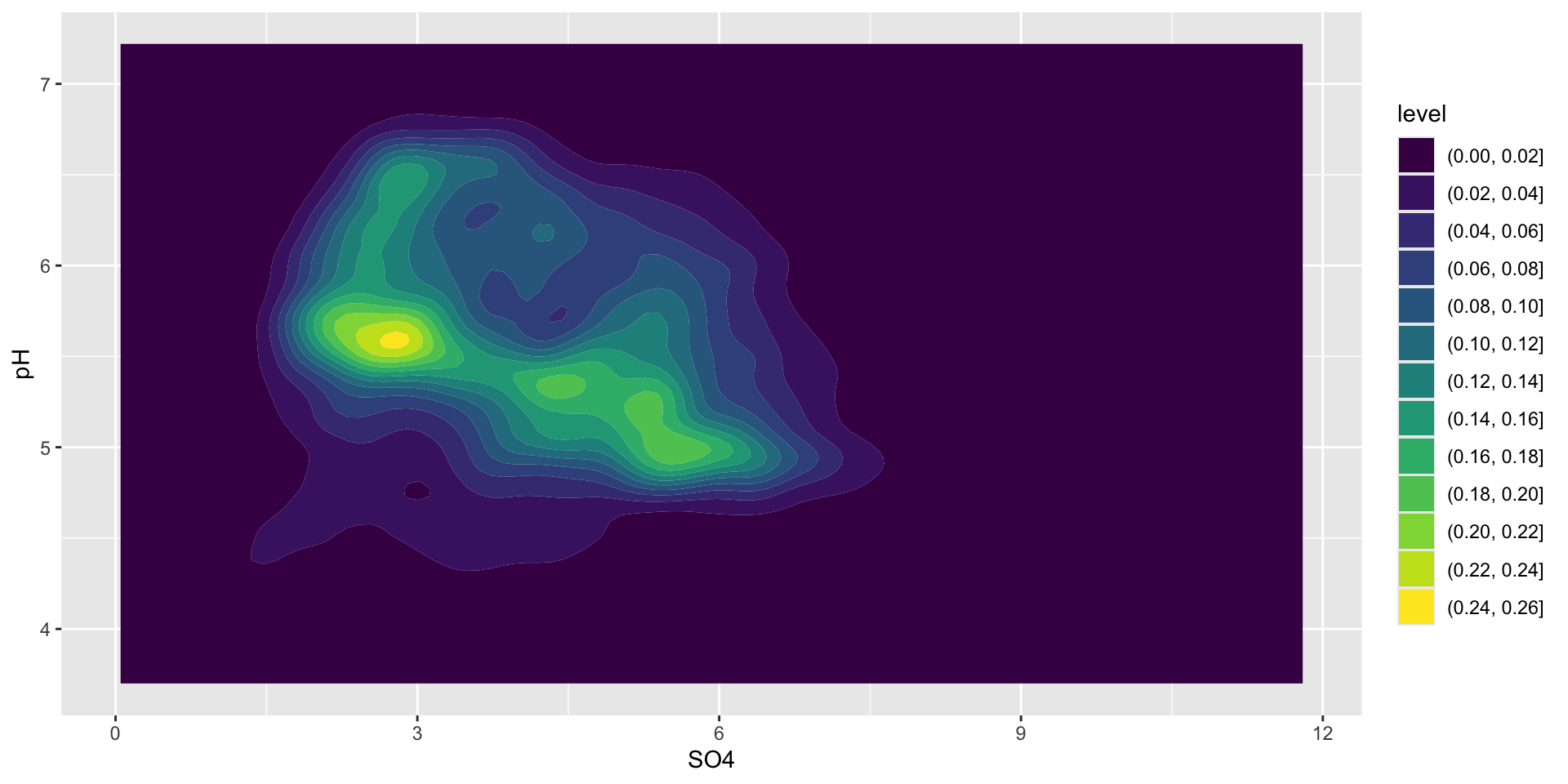
2D density plots

- The {ggExtra} can be used to add marginal histograms/ boxplots/ density plots to ggplot scatter plots

- If suitable, you can add a trend line or line of best fit using geom_smooth()

- You can add in a third numeric variable by creating a bubble chart or using color (Use caution and address these challenges)

- Overplotting can disguise trends

- The {ggdensity} provides alternative functions for contour lines and filled contours

Tips for choosing the right graphic form


  1. Think about the task(s) you want to enable or message(s) you want to convey. For example, do you want to compare, see change or flow, reveal relationships or connections, envision temporal or spatial patterns, show big picture trends or allow for comparisons of individual values.
  1. Consider the number of variables and the number of data points, as well as the data types you’re working with. For example, do you have several vs. many data points? How many categorical and/or numeric variables? Are your variables ordered or not ordered? Data types can dictate which graphical form is appropriate.
  1. Try multiple different graphic forms, especially if you have more than one task to enable or message to convey.
  1. Arrange the components of the graphic to make it as easy as possible to extract meaning from your graphic quickly.
  1. Test the outcomes of your graphic on others, particularly on those who are representative of the audience you are trying to reach.

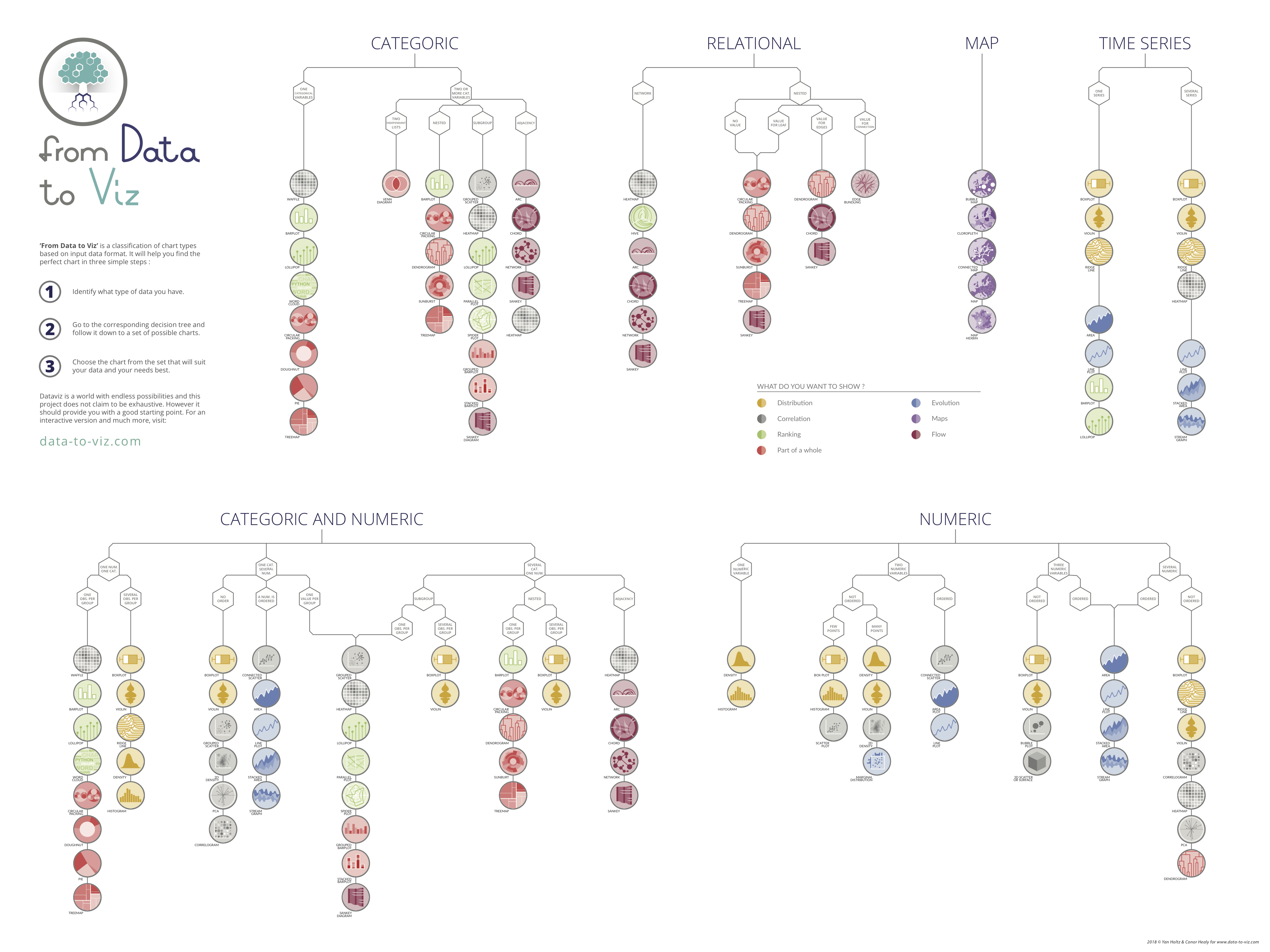
From Data to Viz

A Decision Tree for Data Visualization

The From Data to Vis website helps you:

- Navigate from your data type to the right chart

- Understand the purpose of each visualization

- See real examples with code (in R!)

- Avoid common visualization pitfalls

Bookmark this! It’s an invaluable reference when you’re stuck choosing a chart type.

Interactive decision tree walks you through fundamental chart selection

www.data-to-viz.com

Once you have picked an appropiate graphic form, it’s time to make your viz look its best!


Choosing the right graphic form is just the first step! It’s important to consider how you can enhance your visualization by:

applying pre-made and custom color palettes

updating fonts

adding annotations

fine-tuning themes

centering our primary message

Data Viz Fundamental Chart Hackathon!

Access Your Assigned Data

Now that you have drawn your dataset, find your specific folder in this repository

How to Load Data

To pull your data directly into R without downloading files to your computer:

  1. Open your assigned folder.
  2. Click on the .csv file.
  3. Click the “Raw” button at the top right of the file preview.
  4. Copy the URL from your browser’s address bar.
url <- "PASTE_YOUR_RAW_URL_HERE"
data <- read_csv(url)